
A digital business card is a great way to quickly connect with people at conferences, meetings, social events or on the subway. You display a vCard QR code on your phone for your new contact to scan directly into their contacts (remember to add and save the new contact!). You can create and host one using easy-to-use free websites in about 15 minutes. Here’s how to create a powerful digital business card with contact info, links to social media websites liked LinkedIn, a vCard QR code with your image or logo, and a vCard file that can be downloaded if there are issues scanning or if the digital card is viewed from a desktop.

Create a vCARD QR Code
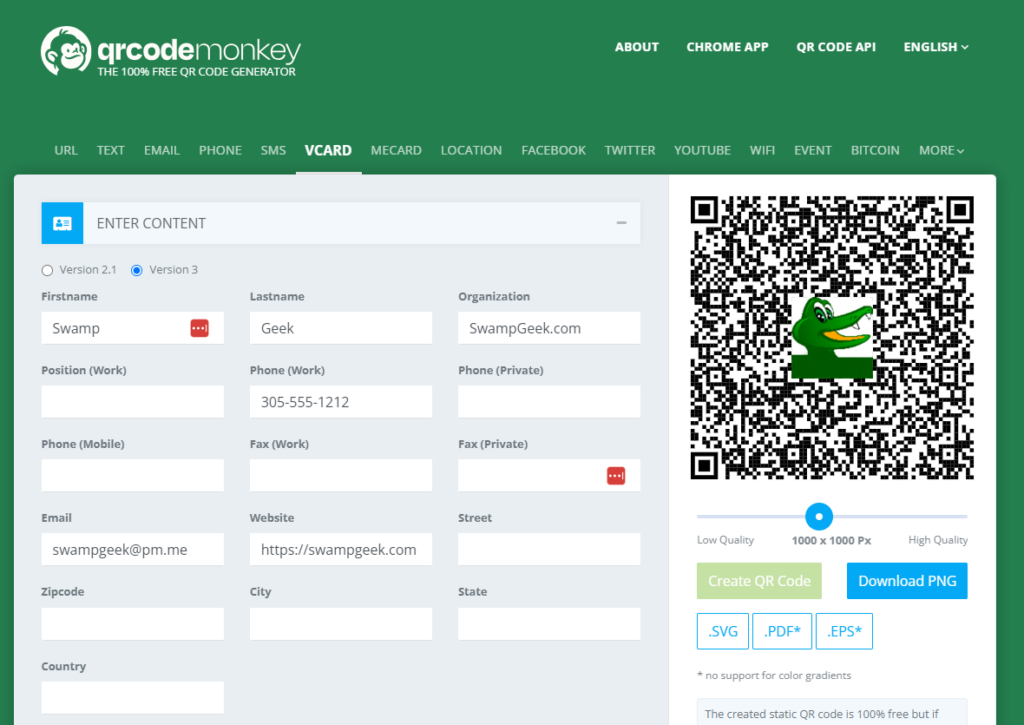
The free vCard QR generator from QRCodeMonkey quickly generates a downloadable image that contains the QR code. It can contain basic contact and business info, but not an image or logo as these contain too much info for a QR code. You can however, insert your photo or a logo into the center of the QR code. Only specified fields are included in the QR code. When someone scans the QR code on a phone, the phone prompts for the creation of a new contact with the info you provide. You might need to remind your new contact to click “Create new contact” and save.
After specifying the information and optionally uploading an image, click Create QR Code using the default quality. Then click Download PNG to save the file locally (you’ll need to upload it on your digital business card page later).
Create a vCard file (.vcf)

vCard Maker lets you create and download a .vcf file with your contact and business info, common and 1 custom social link, image and logo. No account is required. Download the file with a meaningful name (e.g. “swampgeek.vcf”). After downloading the .vcf file, place it on a publicly available location with a direct link. I used pCloud, but there are many options like Dropbox, Google Drive, OneDrive, and even other VCF generators that give you free file storage.
Create Your Digital Business Card
Finally, create the Digital Business Card page using Carrd.co. Carrd allows you to create “Simple, free, fully responsive one-page sites for pretty much anything” and offers a large number of “profile” templates for digital business cards.
Create a few account (no credit card required) using a free email alias like ManyMe or SimpleLogin (great email services like ProtonMail and Tuta Mail offer free accounts and free aliases – without selling your info to advertisers).

Choose a Profile template. If you plan to use a background image, keep in mind the background may cover pieces of the image. If the digital card has a transparent background, the information and images on the card may conflict with the background image. You can find great royalty-free background images from Pixabay and Unsplash, but be careful not to “accidentally” choose commercial images and pay attention to attribution requirements, depending on the license.

Add the QR Code
Insert the background image and business card content, including links for website, phone, email and social links if you prefer. P the QR code image before social links to make sure it displays first on your phone’s browser. Add a Link URL to the direct link to your .vcf file so visitors can click or touch the QR code to download the .vcf. This may be necessary for people who have issues with their phones’ cameras, or for those who access the digital business card on desktop or laptop where the QR code can’t be scanned. Although downloading the .vcf from this link requires the person to open (or import) the downloaded file to add to the contacts, the downloaded file can contain more information, including social links and a profile image.

If you use links or icons for contact info, remember to use tel:xxx-xxx-xxxx for telephone links and mailto:you@domain.com for email links.
Once you’ve entered all the info, click the disk icon (upper right corner) to save and publish the site.

Choose a meaningful name for the site title (e.g. your name), a short description, and the URL name (e.g. your name with no spaces), and the Ccard domain (there are a few choices, but I recommend ccard.co). Then click Publish Changes to make your site live. You can always edit the site later and create (or copy this to) additional sites with different names (URLs).

Save the URL on your phone’s desktop or browser favorites for easy access
After verifying the digital card site, save the URL on your phones’ desktop or browser favorites for easy access. The Brave browser on Android has a widget for browser favorites, so I placed it on the main desktop and just touch it to open directly to the page.
Here’s the final product: https://swampgeek.carrd.co


